Add a server or import an existing subscription
Enter a single server manually
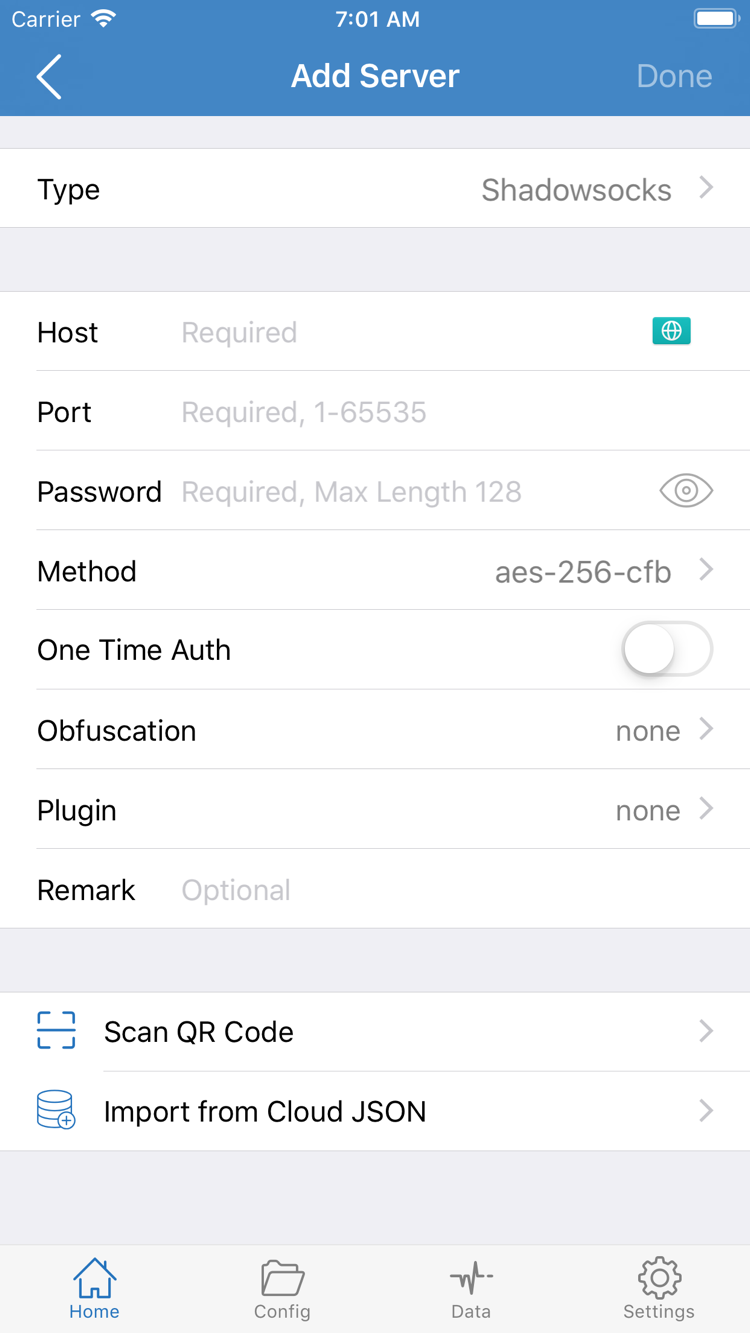
After opening Shadowrocket, stay on Home. Find the SERVER section at the bottom and tap Add Server. The first field is usually Type, which must match the protocol specified in your server details, such as Shadowsocks, VMess, VLESS, Trojan, HTTP, SOCKS5, WireGuard, or Hysteria2. The protocol determines the field structure; do not infer it from the port or server name alone.
After selecting Type, enter Host, Port, Password, Method, and any other fields required by that protocol exactly as shown in the original details. Host should contain a hostname or IP address without explanatory text; Port should contain only the port value. Preserve the original capitalization and character order for Password, UUID, Method, TLS, and other values. If a field is not provided, do not invent a value; first confirm whether that Type actually requires it.
Type: Shadowsocks
Host: example.com
Port: 443
Password: your-password
Method: use the existing details
The content above only illustrates field placement; it is not a usable connection profile. After entering the details, use the page's save action to return to Home. The new entry should appear in the SERVER section. Tap it to make it the selected server. Before changing Global Routing, confirm that the name, Type, Host, and Port match the original details.
Import an existing subscription through Subscribe
If you already have a complete subscription link, choose Subscribe from the server or subscription management area. Paste the full link into the address field, add a recognizable name if needed, then save and update it. An example format is:
https://example.com/sub?token=xxxxThe example domain and parameters only illustrate the link structure. In practice, use your own complete address. After pasting, check three things: whether it begins with the correct https://, whether a line break inserted spaces into the address, and whether a chat app truncated the ending parameters. After a successful update, the SERVER section on Home will show the returned entries. If the update fails, keep the original link and do not create multiple Subscribe entries with the same name.
A subscription is one way to maintain server information in bulk. When the service provider updates the details, update the existing Subscribe entry instead of repeatedly pasting the link and creating duplicate lists. Manual changes to subscription-generated entries may be overwritten during the next update. If a server needs separate adjustments, first confirm whether it is managed by the subscription, then choose the appropriate editing method.
Choose Config, Proxy, or Direct
Return to Home and tap Global Routing. The three modes are commonly described as Config, Proxy, and Direct. They determine how traffic entering Shadowrocket is handled; they do not indicate whether the server itself is available.
Config: evaluate rules in order
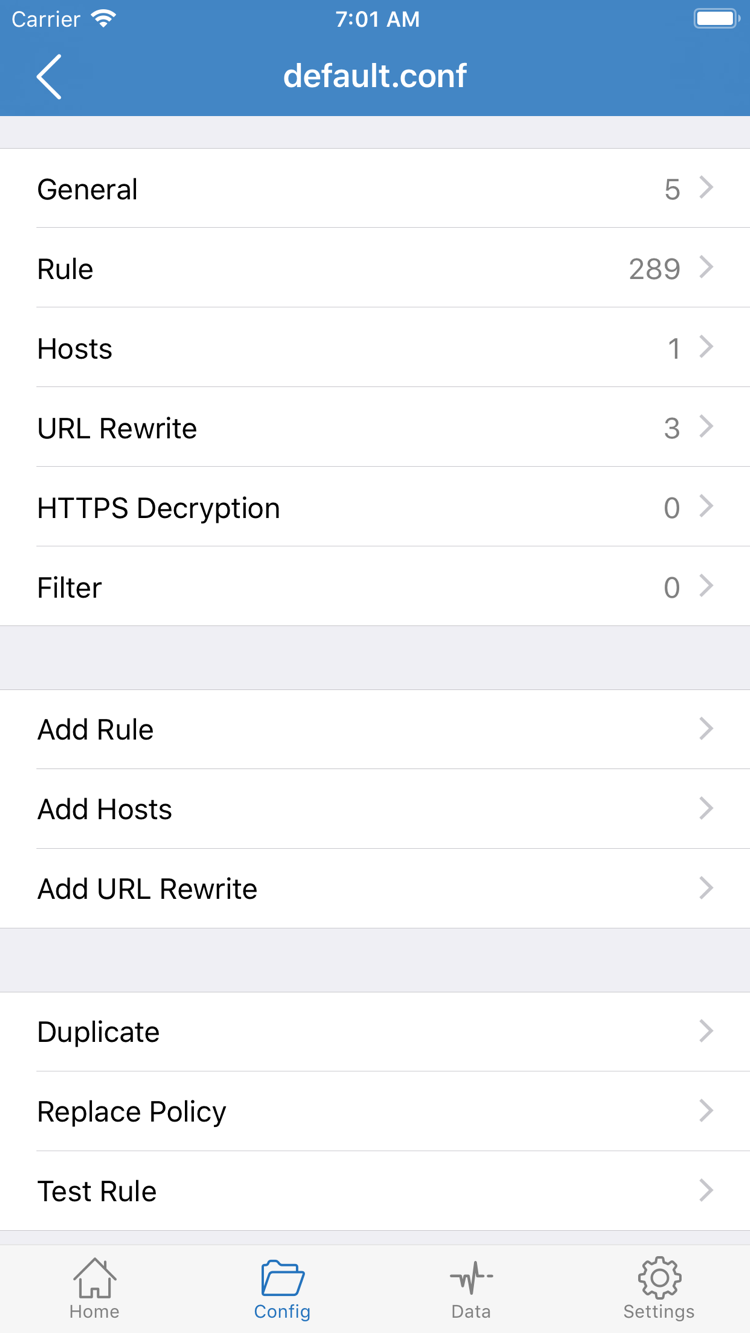
Config is suited to everyday rule-based routing. Requests are matched from top to bottom against Rule entries in the current configuration file. The first applicable rule determines the strategy. Common keywords include DOMAIN, DOMAIN-SUFFIX, DOMAIN-KEYWORD, GEOIP, IP-CIDR, IP-CIDR6, and USER-AGENT; typical outcomes are PROXY, DIRECT, or REJECT. The actual result depends on the configuration file, not on the keyword name alone.
In Config, first confirm the selected configuration file, then review Rule. More specific domain or address rules generally belong earlier, while broader rules belong later, with FINAL handling requests that have not matched previously. If a broad rule appears too early, later and more specific entries will not get a chance to match.
Proxy: send all traffic through the selected server
Proxy sends all traffic entering Shadowrocket through the currently selected server. It is useful for a short comparison test: if a target fails under Config but works under Proxy, the issue is more likely related to rule matching, a policy name, or the selected Config. If it also fails under Proxy, first check the server details, reachability, DNS, or local network.
Direct: do not use the proxy server
Direct sends traffic through the current network without using the proxy server. It is also useful for comparison. If a target works under Direct but fails under Proxy, check server reachability and server parameters. If it also fails under Direct, the issue may involve the current Wi-Fi, cellular network, DNS, or the target itself. Direct is a troubleshooting mode, not proof that the server has been verified.
For initial setup, use Proxy for a server-reachability baseline, then return to Config to check routing results. Do not treat switching Global Routing as a permanent fix: if a target works under Proxy but not Config, identify the specific rule-match difference. The routing setup is complete only after Config works as expected.
DOMAIN-SUFFIX,example.com,PROXY
DOMAIN-KEYWORD,example,DIRECT
IP-CIDR,192.168.0.0/16,DIRECT
GEOIP,CN,DIRECT
FINAL,PROXY
These rules only demonstrate ordered matching. The first handles the specified domain suffix, a private-network address uses IP-CIDR with Direct, and unmatched requests ultimately reach FINAL. Actual configurations should reflect the user's own needs. For a systematic explanation of rule priority, DNS, and complex failures, continue to the troubleshooting guide.
Turn on the connection and confirm its status
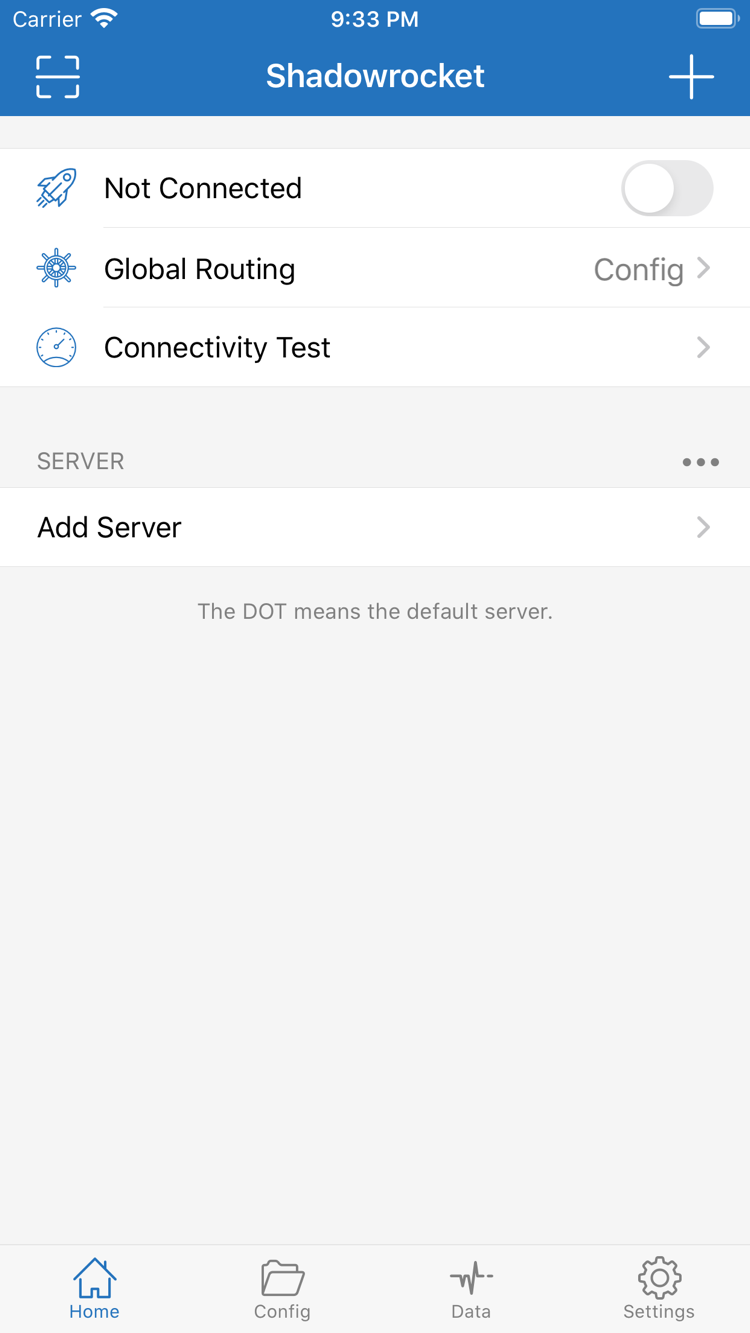
Before connecting, return to Home and perform a quick top-to-bottom check: the target server is selected in the SERVER section, Global Routing shows the expected mode, and the current Config and rules are confirmed. Then turn on the connection switch at the top. When establishing a connection for the first time, the system displays a VPN configuration authorization prompt. Follow the system flow so Shadowrocket can create the local network tunnel.
After the switch is turned on, the status at the top of Home should change from Not Connected to Connected. This indicates that the local tunnel has been established, but it does not by itself prove that the remote server is available or that every request matched the expected rule. After Connected appears, continue with Connectivity Test and an actual request.
If the status changes briefly and immediately returns to Not Connected, do not tap the switch repeatedly. Wait a few seconds, then check that the server is selected, the fields are complete, and the system allows a VPN configuration to be created. If another network state is changing, wait until Wi-Fi or cellular service is stable before trying again.
Create a single, repeatable test condition
For the first test, do not enable On Demand, switch Config repeatedly, or change several servers in succession. Keep one network, one server, and one Global Routing mode fixed, complete one full verification, and only then change the next item. This separates a switch that will not stay on, a server timeout, and an unexpected rule match.
On iPad, Home may rearrange items in landscape or split-screen layouts, but the workflow is the same: select a server, check Global Routing, turn on the connection, then verify it. Check the same App Store product page for Mac, Apple TV, and Apple Vision compatibility; system requirements are listed on the App Store page. This guide focuses on iPhone and iPad.
Verify server reachability and rule matches
Verification has two layers: first, check whether the selected server can establish a working connection; second, check whether an actual request is handled according to Global Routing and Config rules. Looking only at the switch can miss a remote timeout, while looking at one webpage alone makes cache, DNS, and rule effects difficult to distinguish.
Run Connectivity Test
In Home, tap Connectivity Test to test reachability for the selected server. A completed test indicates that the server details and current network have at least basic communication conditions. If it times out or produces no result, return to Add Server and check Type, Host, Port, Password, Method, and any protocol-specific fields. For a subscription-generated entry, update the existing Subscribe entry first, then select the server and test again.
Connectivity Test provides only a clue about reachability. It does not replace rule verification or show that every target uses the same route. After the test passes, keep the current settings, make one recognizable real request, and review the request record.
Review the result in Data or the connection log
Open Data or the in-app area that shows connection records. Clear the view, then access the target once more. Find the new request and check its domain, destination address, policy, and rule information. Under Config, check whether it matched the expected DOMAIN-SUFFIX, DOMAIN-KEYWORD, GEOIP, IP-CIDR, or FINAL and whether the final result was PROXY, DIRECT, or REJECT.
If a request matched the wrong rule, check the order first rather than changing the server. Rules are processed from top to bottom, and the first match ends the evaluation. For example, if a broad DOMAIN-SUFFIX rule appears before a specific DOMAIN rule, the latter may never be used. After adjusting the order, save Config, return to Home, confirm that the same Config remains selected, and generate the request again.
Use three modes for a minimal comparison
- Direct baseline: Switch briefly to Direct and confirm whether the current local network can complete basic access.
- Proxy baseline: Switch to Proxy and confirm whether the selected server can handle the request.
- Config verification: Switch back to Config and review the specific request's rule and policy result in Data.
If Direct works but Proxy fails, first check the server details and Connectivity Test. If Proxy works but Config fails, first check the current configuration file, Rule order, and policy references. If all three modes fail, check the local network, DNS, and target status first. Use the same server and target for each comparison to avoid introducing new variables.
Check common failures layer by layer
Troubleshoot in this order: input details, server reachability, local connection, Global Routing, Config rules, then DNS and the network. Change one layer at a time and repeat the same test after each change. If you replace the server, edit rules, and change DNS simultaneously, you cannot identify the actual cause even if the problem disappears.
Subscribe update fails
First confirm that the link is complete, contains no spaces or line breaks, begins with the same protocol as the original address, and has all ending parameters. Temporarily turn off the Shadowrocket connection, use the current network to confirm that the address can be requested normally, then return to the original Subscribe entry and update it. Do not create multiple same-name entries to overwrite the problem; duplicates make later selection errors more likely.
Connectivity Test times out
For a manually added server, check Type, Host, Port, Password, Method, TLS, and any protocol-specific fields one by one. For a server generated by Subscribe, update the subscription first, then select the target entry again. Next, compare Wi-Fi and cellular data by changing only that variable. If the failure occurs on just one network, continue by checking its DNS, authentication page, or connection restrictions.
Connected is shown, but access fails
Switch to Direct first for a local-network baseline, then use Proxy to check the server baseline. If Direct works but Proxy does not, return to the server and Connectivity Test. If Proxy works but Config does not, check the current Config, Rule order, policy name, and FINAL. If the status shows Connected but Data contains no new request, confirm that the system VPN status corresponds to Shadowrocket and check whether On Demand has changed the connection trigger conditions.
Only some targets behave unexpectedly
This type of issue is usually in the rule layer. Find the actual domain or IP for the request in Data, then check the first rule it matched. Do not rely only on the browser address bar, because one page may request several domains. Use DOMAIN or DOMAIN-SUFFIX for a specific domain, use DOMAIN-KEYWORD cautiously for keyword matching, and use IP-CIDR or IP-CIDR6 for address ranges. After adding a rule, save Config and generate the request again to verify it.
DNS resolution problems
If Connectivity Test completes but domain access fails while direct-address access behaves differently, check DNS. First return to a DNS configuration whose source can be explained, avoiding several resolution methods at once. Then repeat the same domain test under Direct, Proxy, and Config, and check Data for the resulting connection. Complex Hosts, URL Rewrite, or HTTPS Decryption settings may also affect the result; during troubleshooting, first confirm whether they are relevant to the issue.
On Demand causes repeated status changes
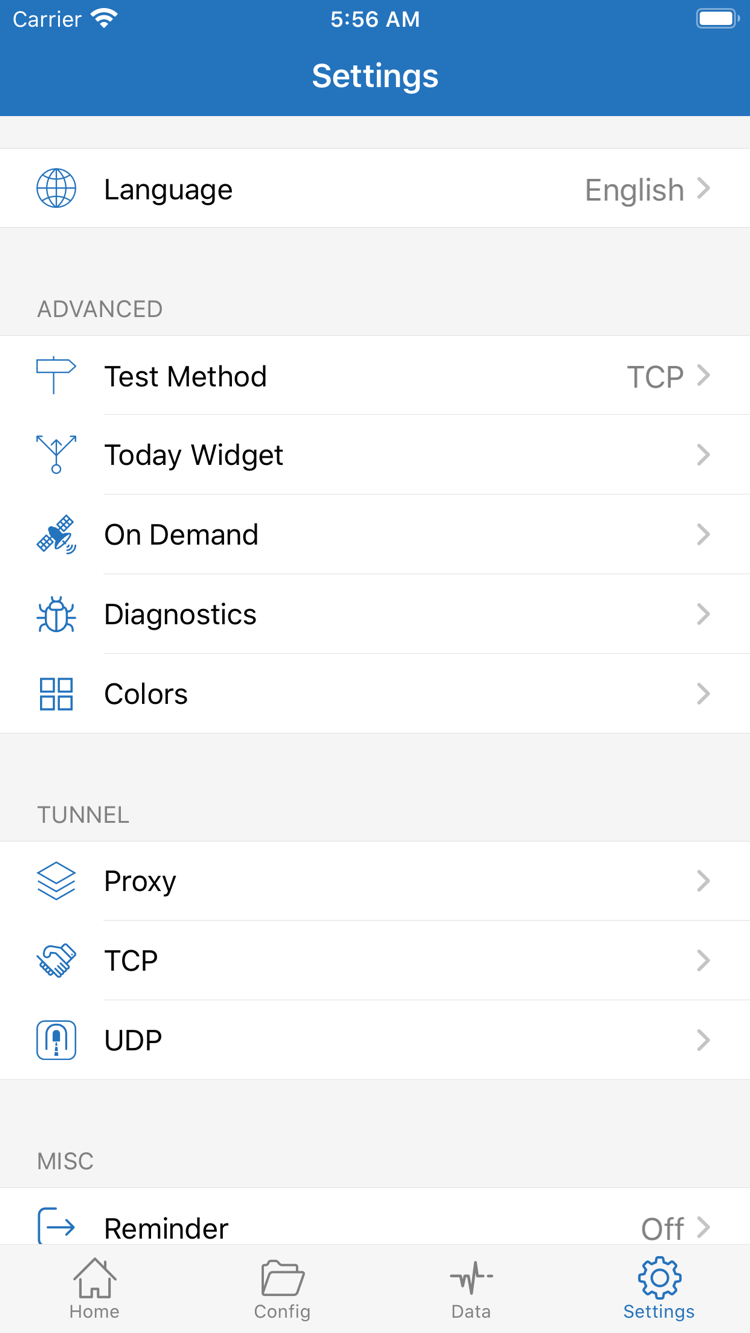
On Demand triggers connection or disconnection based on network conditions. During initial setup and troubleshooting, turn off On Demand and establish one stable connection manually. After the basic workflow is verified, return to Settings to configure its triggers. If the status changes after switching Wi-Fi, leaving a network, or waking the device, check the On Demand conditions instead of repeatedly tapping the Home switch.
The cause is still unclear after changes
Use Diagnostics and related test items in Settings to collect symptoms. Record the current network, server name, Global Routing, Config, Connectivity Test result, and exact failure time. Before sharing diagnostic information, check whether it contains personal connection details. For more complete procedures covering no access, server timeouts, subscription failures, slow speeds, DNS, battery use, and iPad-specific issues, continue chapter by chapter through the Shadowrocket troubleshooting guide.
Save a reproducible working configuration
After verification, restore Global Routing to the mode you need day to day. When using Config, confirm that the selected configuration file has a clear name and that the Rule order explains the actual requests. When using Subscribe, keep one primary update entry and remove duplicates created during testing. You can organize server names by purpose, but do not change protocol-defined fields.
Record a minimal known-good state: the current server, Global Routing mode, Config name, one successful Connectivity Test result, and one expected rule match in Data. When a problem occurs later, compare it with this state first; that is easier than changing every setting from scratch.
After moving to a new device or restoring Shadowrocket from the App Store, app purchases and server details remain separate. Restore purchased items through the App Store process, and reimport subscriptions and Config using your own backup method. Check the App Store page for system requirements, compatibility, and purchase information.
Next: troubleshoot by symptom
If basic setup is complete but you still have access failures, timeouts, incorrect rules, DNS issues, or battery concerns, open the full guide and check each symptom in turn.